Online storeThe platform’s official API instead of exports and scripts

Data from your storewithout exports

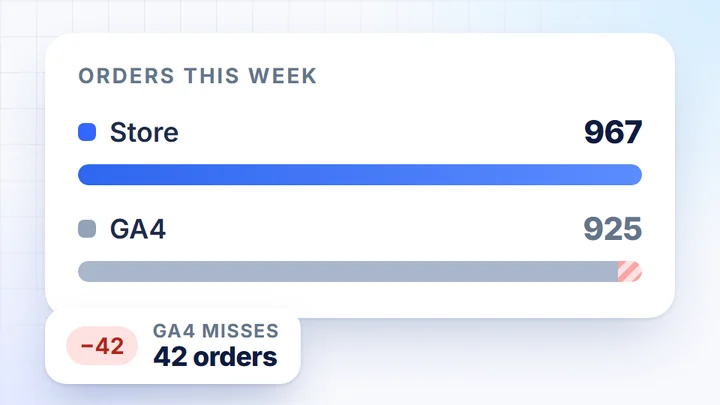
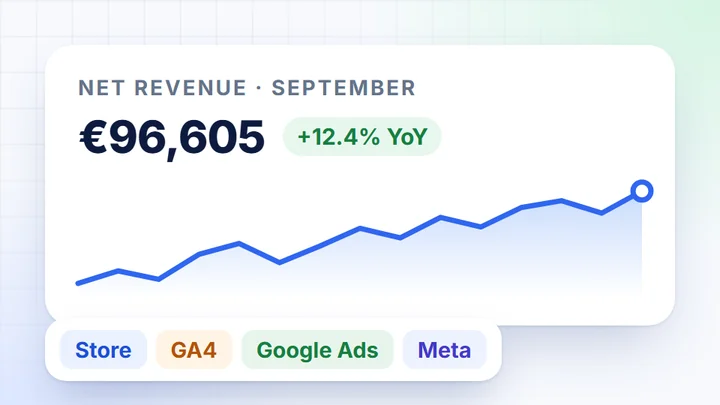
Orders, products and stock from your store reach DataOrganizer every day, next to GA4 and campaigns. You connect the store once, through the platform’s official API: WooCommerce, PrestaShop, Magento, Shopify, Wix and Shopware.

No credit cardNo changes to the store’s codeData refreshed daily

  • WooCommerce
  • PrestaShop
  • Magento 2
  • Shopify
  • Wix
  • Shopware
Today: a sales summary from the store adminevery Monday

orders_21-27_09_2026.csv

# export from the admin panel, 1,402 rows
number;date;status;gross value;shipping;payment
1871;2026-09-27;completed;189.00;14.99;bank transfer
1870;2026-09-27;cancelled;76.50;9.99;cash on delivery
1869;2026-09-26;processing;254.00;0.00;card
…

Then, still by hand

  • cancelled and unpaid: removed by hand
  • gross to net, without shipping: formulas
  • Google Ads and Meta: more exports
In DataOrganizer: connect the store onceOrders, products and stock are ready every day, next to GA4 and campaigns.

This is how it looks in the app

Store connected,next to Google and Meta

A sample WooCommerce store, as of 28 September 2026. The “Data Availability” panel shows every source: the date range and the time of the last sync. The store sits next to Google Analytics, Search Console, Merchant Center, Google Ads and Meta Ads.

  1. The store in your data sourcesOrders and product data, with the date range and the time of the last sync.
  2. Google and Meta next to the storeAnalytics, Search Console, Merchant Center, Google Ads and Meta Ads in the same view.
  3. History rangeYou choose how much history to pull. The “Integrations” button takes you to the data sources.

How it works

Three steps. Only the first one needs you.

  1. 1Once, at the start

    You connect your store

    Paste the API access details into the source wizard, and connect Shopify through the Shopify App Store. No changes to the store’s code.

  2. 2Daily, without you

    DataOrganizer syncs the data

    Once a day it pulls orders, products and stock, calculates net revenue and joins the store with GA4 and campaigns.

  3. 3Whenever you like

    Get the data out however you like

    Ready-made cards, table export, the Google Sheets add-on or MCP for Claude and other AI assistants.

    CSVExcelGoogle SheetsMCP

How to connect your store

Your platform’s official API.No changes to the store’s code.

Create API access in the store admin and paste it into the source wizard. Shopify needs no keys: you approve access in the Shopify App Store. DataOrganizer only reads data and writes nothing to the store.

In DataOrganizerdata source wizard

  1. Add a source.Choose the sales channel, then your store’s platform.
    Data integrations → Data sources → Add source
  2. Paste the access details.The store address and the key, token or API access details from the platform’s admin. Connect Shopify with the “Connect via Shopify” button.
  3. Tick the statuses counted as revenue.In the channel’s “⋯” menu. Other orders are “outside analytics”.

Several stores or countries?Connect each store as a separate sales channel, e.g. for a country or brand, and compare them on one card.

PermissionsDataOrganizer only reads data and writes nothing to the store

First synctakes the longest; data appears gradually

After thatonce a day; you can also run a sync manually

What goes into DataOrganizer

Orders from your storeready for analysis

One tidy table instead of exports from the store admin stitched together in a spreadsheet. Calculated the same way every day.

AreaWhat we pullHow we calculate

Ordersnumber, date, status and valueyou choose which statuses count as revenue

Revenuenet, excluding VAT and shipping costsVAT rates pulled from the platform

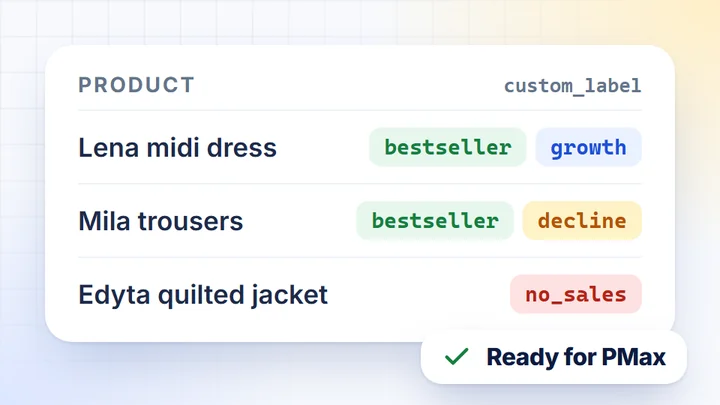
ProductsID, name, price, category and variantsthe “Products” and “Current prices” datasets

Stock levelsproduct stockevery night at approx. 2:00, if the platform provides stock

Payments and deliverypayment and delivery methodsshare of orders for each method

Discountscoupon codes and promotionsdiscount next to basket value

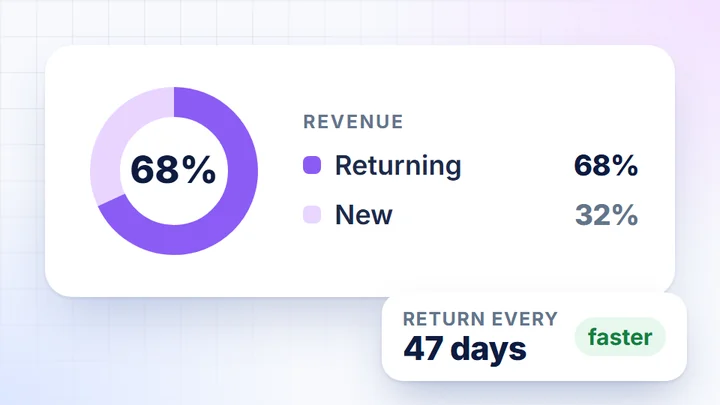
Customersnew and returning, purchase frequency, LTVonly aggregate figures in views and exports, without names, addresses, emails or phone numbers

In the app · Orders card

Orders in analytics

1,356 of 1,402 (96.7%). Skipped: 46.

StatusShareOrders

Completed74.8%1,048

Processing22.0%308

Cancelledoutside analytics2.1%29

Failedoutside analytics0.9%12

Awaiting paymentoutside analytics0.4%5

You choose the counted statuses in the channel’s “⋯” menu in Integrations. The rest doesn’t count as revenue.

History and refreshYou choose how much history to pull and can change it with the “Update data range” button. Data refreshes once a day, or manually when needed.

How you get the data out

CSV, Excel, Google Sheetsor MCP for your AI assistant

Data from your store and your other sources sits in tables on the cards. Export a table with one click, or connect a Google Sheet and an AI assistant that pulls the data itself.

  1. DatasetsProducts, Current prices, Daily Data and more. You pick the columns from the store, GA4 and combined data.
  2. ExportCSV and Excel contain every row, while copying to the clipboard takes only the visible page.
  3. MCPPaste the server address into Claude, ChatGPT, Gemini or Perplexity and sign in with your DataOrganizer account.
  4. Google Sheets add-onIn the sheet: Extensions → DataOrganizer. Data refreshes on the schedule you choose.

Who it’s for

Store connected once, data for the whole team

Store owner

Sales, traffic and campaigns in one view

Today: you export orders from the store admin to Excel and copy GA4, Google Ads and Meta data over from separate panels.

  • One view. Sales, traffic and campaigns on the Summary card.
  • Revenue calculated. Net, excluding VAT and shipping, from the statuses you choose.
  • Campaigns next to sales. Google Ads and Meta Ads in the same view.
  • Fresh data every day. No manual export.
Reporting person

Store orders in Google Sheets

Today: every week you export orders to CSV, paste them into a sheet and add data from GA4 and campaigns.

  • Google Sheets add-on. Extensions → DataOrganizer, refreshing on the schedule you choose.
  • Scope before import. You choose dates, columns and filters.
  • Several sources in one table. Store, GA4 and campaigns side by side.
  • CSV, Excel, Sheets, MCP. Data in the format your team needs.

Integrations

Connectors you don’t have to write

Store platforms

  • WooCommerce
  • PrestaShop
  • Magento 2
  • Shopify
  • Wix
  • Shopware

Analytics, ads and affiliate

  • Google Analytics 4
  • Google Ads
  • Meta Ads
  • TikTok Ads
  • Microsoft Ads
  • Pinterest Ads
  • Criteo
  • TradeTracker

Google

  • Merchant Center
  • Search Console

Can’t see your platform? Write to contact@dataorganizer.io and we’ll check its API.

Connect your store once. Get your data every day.

Connect your store once and DataOrganizer does the rest. For 14 days you get everything free, with no credit card.

Store accessAn admin account or an API key
Google and MetaConnect by signing in with your account
14 days freeNo card. Accounts with no source are deleted after 10 days