ShopwareAn integration with a read-only role instead of exports

Shopwarewithout CSV exports

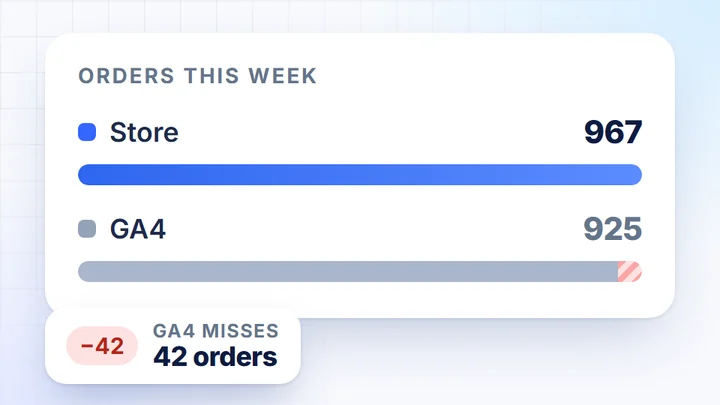
Instead of exporting orders from the Shopware admin and joining them with GA4 in a spreadsheet: add an integration with a read-only role in Shopware and paste its keys into DataOrganizer together with the store address. Orders, products and customers are ready for analysis and refreshed daily.

No credit cardNo plugin and no changes to the storeData refreshed daily

Today: a sales report from Shopwareevery Monday

orders_week_39.csv

# export from the admin panel, 1,402 rows
number;date;status;gross value;shipping;payment
10871;2026-09-27;completed;219.00;12.99;bank transfer
10870;2026-09-27;open;64.90;9.99;bank transfer
10869;2026-09-26;cancelled;342.50;0.00;card
…

Then, still by hand

  • cancelled and unpaid: filtered by hand
  • gross to net, without shipping: formulas
  • Google Ads and Meta: more exports
In DataOrganizer: paste the integration keys onceOrders, products and stock are ready every day, next to GA4 and campaigns.

This is how it looks in the app

Shopware connected,next to Google and Meta

A sample store, as of 28 September 2026. The “Data Availability” panel shows every source: the date range and the time of the last sync. Shopware sits next to Google Analytics, Search Console, Merchant Center, Google Ads and Meta Ads.

  1. Shopware in your data sourcesOrders and product data, with the date range and the time of the last sync.
  2. Google and Meta next to the storeAnalytics, Search Console, Merchant Center, Google Ads and Meta Ads in the same view.
  3. History rangeYou choose how much history to pull. The “Integrations” button takes you to the data sources.

How it works

Three steps. Only the first one needs you.

  1. 1Once, at the start

    You connect Shopware

    Paste the integration keys and store address into the source wizard. No changes to the store’s code.

  2. 2Daily, without you

    DataOrganizer syncs the data

    Once a day it pulls orders, products and stock, calculates net revenue and joins the store with GA4 and campaigns.

  3. 3Whenever you like

    Get the data out however you like

    Ready-made cards, table export, the Google Sheets add-on or MCP for Claude and other AI assistants.

    CSVExcelGoogle SheetsMCP

How to connect Shopware

A Shopware integration.A read-only role, no changes to the store.

The connection uses the platform’s official API. DataOrganizer only reads data and changes nothing in your store.

In the Shopware adminstore administrator

  1. Add an integration.In the Shopware admin panel.
    Settings → System → Integrations → Add integration
  2. Assign a read-only role.The integration only needs to read store data.
  3. Copy the Access key ID and Secret access key.Paste them into DataOrganizer together with the store address.

To copy

Store URLhttps://yourstore.com

Access key IDSWIA••••••••••••X7QK

Secret access key••••••••••••••••

In DataOrganizerdata source wizard

  1. Add a source.Choose the sales channel, then the Shopware platform.
    Data integrations → Data sources → Add source
  2. Paste the access details.Store URLAccess key IDSecret access key
  3. Tick the statuses counted as revenue.In the channel’s “⋯” menu. Other orders are “outside analytics”.

Permissionsan integration with a read-only role; DataOrganizer only reads data

First syncto start, we pull data from the last 90 days

After thatonce a day; you can also run a sync manually

What goes into DataOrganizer

Orders from Shopwareready for analysis

One tidy table instead of exports from the Shopware admin stitched together in a spreadsheet. Calculated the same way every day.

AreaWhat we pullHow we calculate

Ordersnumber, date, status and valueyou choose which statuses count as revenue

Revenuenet, excluding VAT and shipping costsVAT rates pulled from the platform

ProductsID, name, price, category and variantsthe “Products” and “Current prices” datasets

Stock levelsproduct stockevery night at approx. 2:00, if the platform provides stock

Payments and deliverypayment and delivery methodsshare of orders for each method

Discountscoupon codes and promotionsdiscount next to basket value

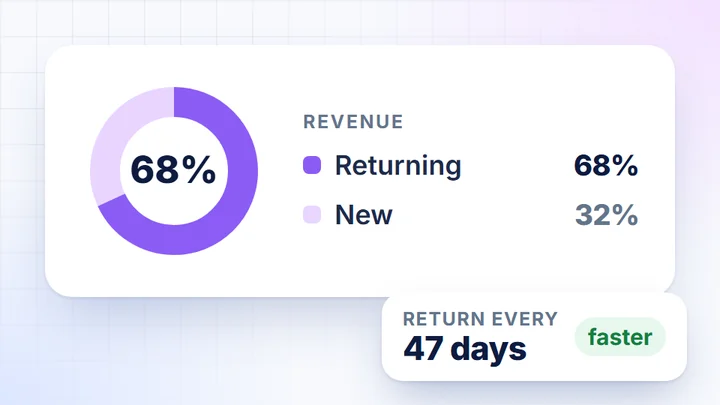
Customersnew and returning, purchase frequency, LTVonly aggregate figures in views and exports, without names, addresses, emails or phone numbers

In the app · Orders card

Orders in analytics

1,356 of 1,402 (96.7%). Skipped: 46.

StatusShareOrders

Completed74.8%1,048

Processing22.0%308

Cancelledoutside analytics2.1%29

Failedoutside analytics0.9%12

Awaiting paymentoutside analytics0.4%5

You choose the counted statuses in the channel’s “⋯” menu in Integrations. The rest doesn’t count as revenue.

History and refreshYou choose how much history to pull and can change it with the “Update data range” button. Data refreshes once a day, or manually when needed.

How you get the data out

CSV, Excel, Google Sheetsor MCP for your AI assistant

Data from Shopware and your other sources sits in tables on the cards. Export a table with one click, or connect a Google Sheet and an AI assistant that pulls the data itself.

  1. DatasetsProducts, Current prices, Daily Data and more. You pick the columns from the store, GA4 and combined data.
  2. ExportCSV and Excel contain every row, while copying to the clipboard takes only the visible page.
  3. MCPPaste the server address into Claude, ChatGPT, Gemini or Perplexity and sign in with your DataOrganizer account.
  4. Google Sheets add-onIn the sheet: Extensions → DataOrganizer. Data refreshes on the schedule you choose.

Who it’s for

Shopware connected once, data for the whole team

Shopware store owner

Shopware sales next to GA4 and campaigns

Today: you export orders from the Shopware admin to a spreadsheet and copy GA4, Google Ads and Meta data over from separate panels.

  • One view. Sales, traffic and campaigns on the Summary card.
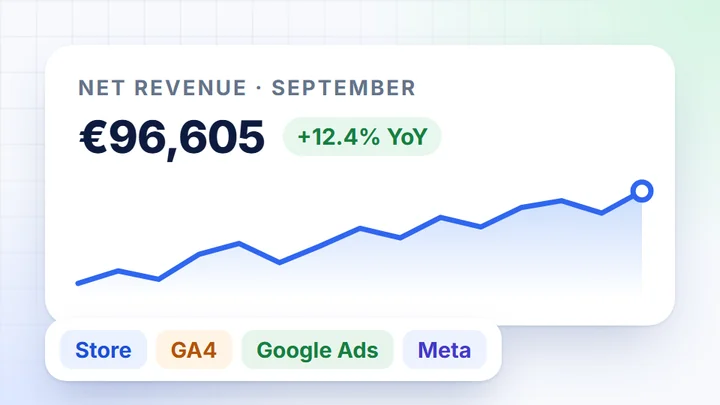
  • Revenue calculated. Net, excluding VAT and shipping, from the statuses you choose.
  • AI Assistant. Ask about your data in plain language, in the app.
  • Fresh data every day. No manual export.
Agency or freelancer

Reports for Shopware stores

Today: you collect exports from several Shopware stores and build a report from them in a spreadsheet every month.

  • A read-only role. The integration in Shopware only reads store data.
  • Several stores or countries. Each store in a separate sales channel.
  • Ready-made cards. Sales, products, customers and campaigns without building a dashboard.
  • CSV, Excel, Sheets, MCP. Data in the format your client needs.

Integrations

Connectors you don’t have to write

Store platforms

  • WooCommerce
  • PrestaShop
  • Magento 2
  • Shopify
  • Wix
  • Shopware

Analytics, ads and affiliate

  • Google Analytics 4
  • Google Ads
  • Meta Ads
  • TikTok Ads
  • Criteo
  • TradeTracker

Google

  • Merchant Center
  • Search Console

Can’t see your platform? Write to contact@dataorganizer.io and we’ll check its API.

Connect Shopware once.Get your data every day.

Paste the integration keys once and DataOrganizer does the rest. For 14 days you get everything free, with no credit card.

14 daysfree,
no credit card

  • Every feature: cards, AI Assistant, MCP and exports
  • Shopware next to GA4, Google Ads and Meta Ads
  • Data refreshed once a day, no exports